
Before hiring
Company
Create the organization profile that sits behind your jobs. Complete the company details once, then use that company for your hiring activity.
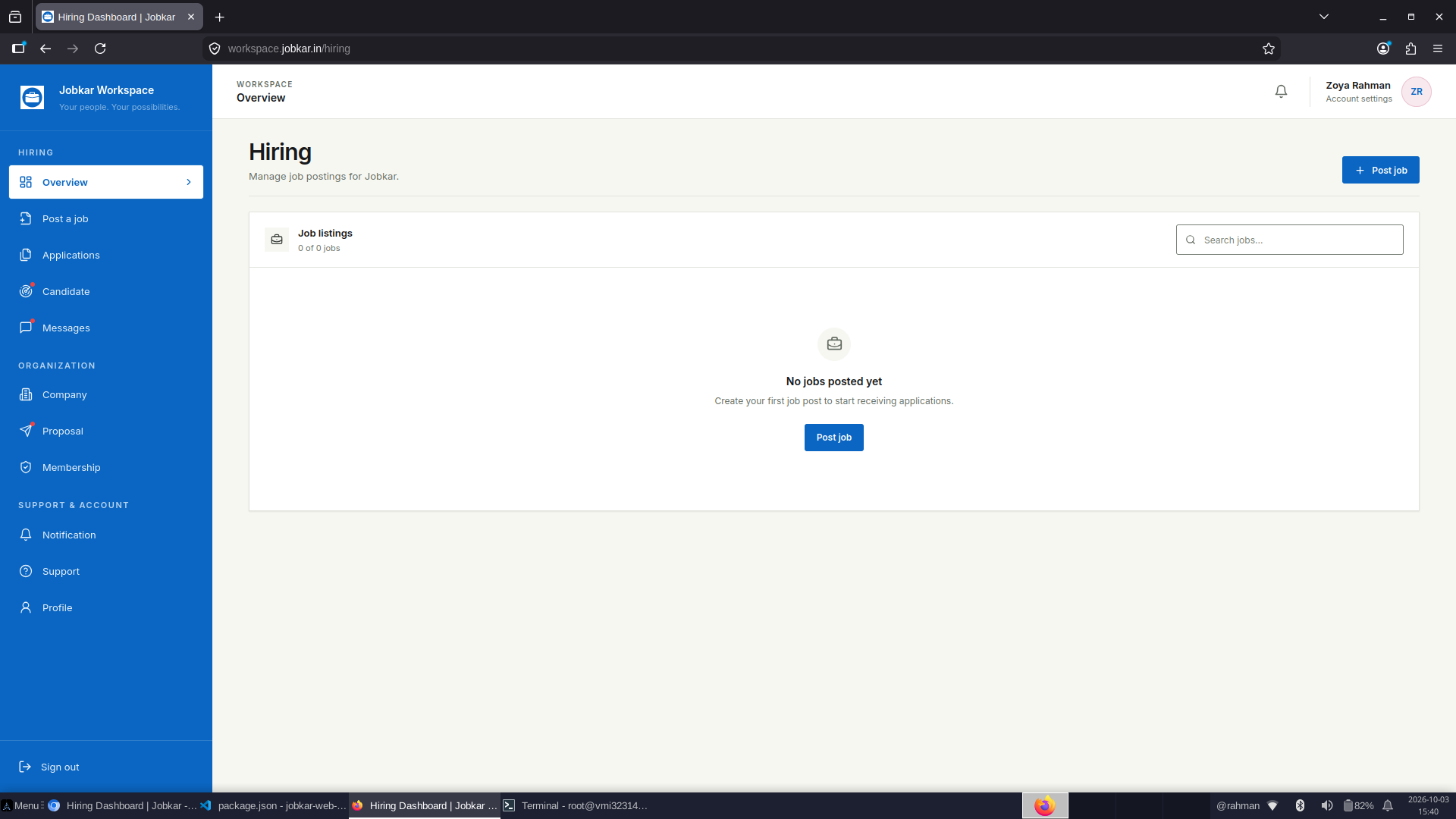
Workspace is the employer side of Jobkar. It is where you set up your company, publish openings, manage applicants, find Open to Work professionals and continue hiring conversations.
The one thing to remember
jobkar.in helps people discover opportunities. app.jobkar.in is the professional social application. Workspace is where an employer operates the hiring process after deciding to recruit.
Before hiring
Create the organization profile that sits behind your jobs. Complete the company details once, then use that company for your hiring activity.
When you have an opening
Describe the role clearly: title, description, category, job type, work mode, experience, salary, location and required skills.
When candidates arrive
Use Applications to review people who applied, Open to Work to source proactively, and Messages to continue direct conversations.
Hiring flow
You do not need to understand every Workspace page. Start with the task in front of you and use the matching destination.
Jobkar Workspace is the employer side of Jobkar. It is where you actually manage hiring instead of only browsing jobs.
Your company, jobs, applicants and hiring activity need to belong to a signed-in employer account.
Company is the employer profile attached to your hiring activity. It contains the organization details candidates see around your openings.
A job should clearly tell a candidate which company is hiring. Workspace therefore asks you to create the company before publishing jobs.
Post a job is where you create the opening you want to hire for. The form captures the role, location, experience, skills, work mode and compensation details.
Candidates need enough information to understand the opportunity, and Jobkar needs structured job information to present the opening correctly.
Applications shows candidates who responded to your job posting.
This keeps every applicant connected to the exact job they applied for, so your team can review candidates in context.
Open to Work is the proactive sourcing part of Workspace. It helps you find professionals who have indicated that they are looking for an opportunity.
You do not have to depend only on people discovering your job. You can also search for available professionals yourself.
Messages is the private one-to-one conversation area inside the Workspace.
A job post and candidate profile start the hiring process; direct conversation lets you ask questions, share next steps and continue the discussion.
Proposal is the recruiter-collaboration workflow. It lets the workspace owner find an existing Jobkar user and invite that person to collaborate with the company.
A founder, HR lead or hiring manager may want another recruiter to help source and manage candidates. Proposal gives that collaboration a separate place.
Supporting areas
Your company activity inbox. Filter all, unread or read notifications and work through new activity.
Your personal account identity. Company represents the organization; Profile represents the person operating it.
Shows the current workspace access and membership information. The current page states that membership charges are not active during early access.
Create and track a support ticket when an account, company, job or workspace problem needs help.
Ready to hire
After that, create the job. Once it is published, Applications and Open to Work give you two ways to find candidates, and Messages keeps the conversation going.